
To maximize your studying while using practice quizzes, we've added multiple attempts into choosing the correct answer.
Checking your answer
To see if the answer you chose or entered is correct, please click/tap the Am I correct? button after the answer area. (Example below)
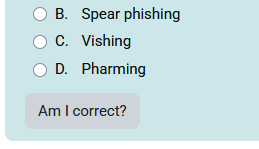
If you gave the correct answer, you will get a green checkmark.
If not, you will get a red X. You can then choose or enter another answer. With four answer options, you get up to three tries to get the correct answer.
Once you're ready to go to the next question, click/tap the Next page button.
The Summary
Once you've gone through the questions, you will come to a summary of attempt page with the questions numbered and the status of each (Example below).
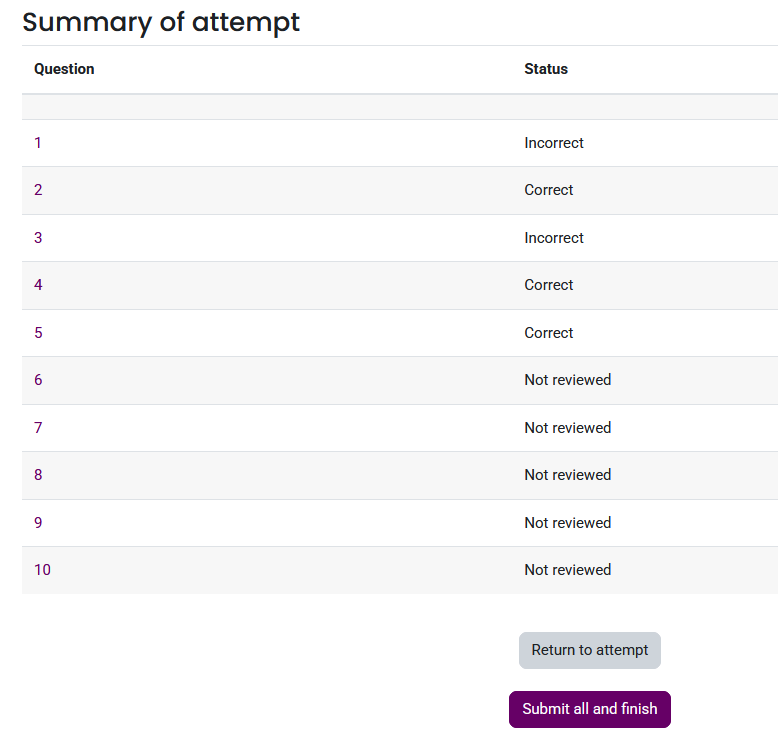
If a question has a status of Not reviewed, it means that the Am I correct? button was not used for that question. It could mean that there may be no answer for it at all. The Learning Center does not know if there's an answer until that button is clicked/tapped. The example above has questions 6-10 with that status. Please click/tap the number of the question you would like to visit or use the Return to attempt button to review those questions.
Reviewing your questions
Each question has a separate solution. We provide the View Solution link to the solution in the text block below the question.
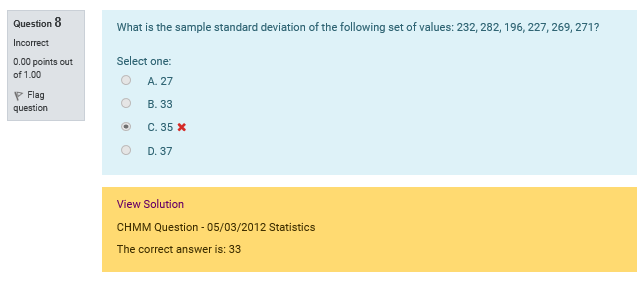
If you want to reference the question or find the solution later, just note the title and date in the line below View Solution (i.e., CHMM Question - 05/03/2012 Statistics). You can then find that solution in the appropriate Study Question Database in the Learning Center.
